

How To - Assign the Co-Pilot Key On A Keyboard That Doesn't Have The Key


Most new keyboards starting to come out have the Co-Pilot key. On older computer keyboards that don’t have the key, you can map the Right CTRL key to the Co-Pilot key.
To set up the key, you will first need to install Microsoft Powertoys. You can see if you have Powertoys installed by running this command at a CMD prompt or PowerShell terminal:
winget list Microsoft.PowertoysIf it is listed in the output, you have it installed. If it isn’t listed, then you will need to install it. To install it, type:
winget install microsoft.powertoysThe output will look like this:
Found PowerToys [Microsoft.PowerToys] Version 0.86.0
This application is licensed to you by its owner.
Microsoft is not responsible for, nor does it grant any licenses to, third-party packages.
Downloading https://github.com/microsoft/PowerToys/releases/download/v0.86.0/PowerToysUserSetup-0.86.0-x64.exe
  ██████████████████████████████   271 MB /  271 MB
Successfully verified installer hash
Starting package install...
Successfully installed
Powertoys Setup
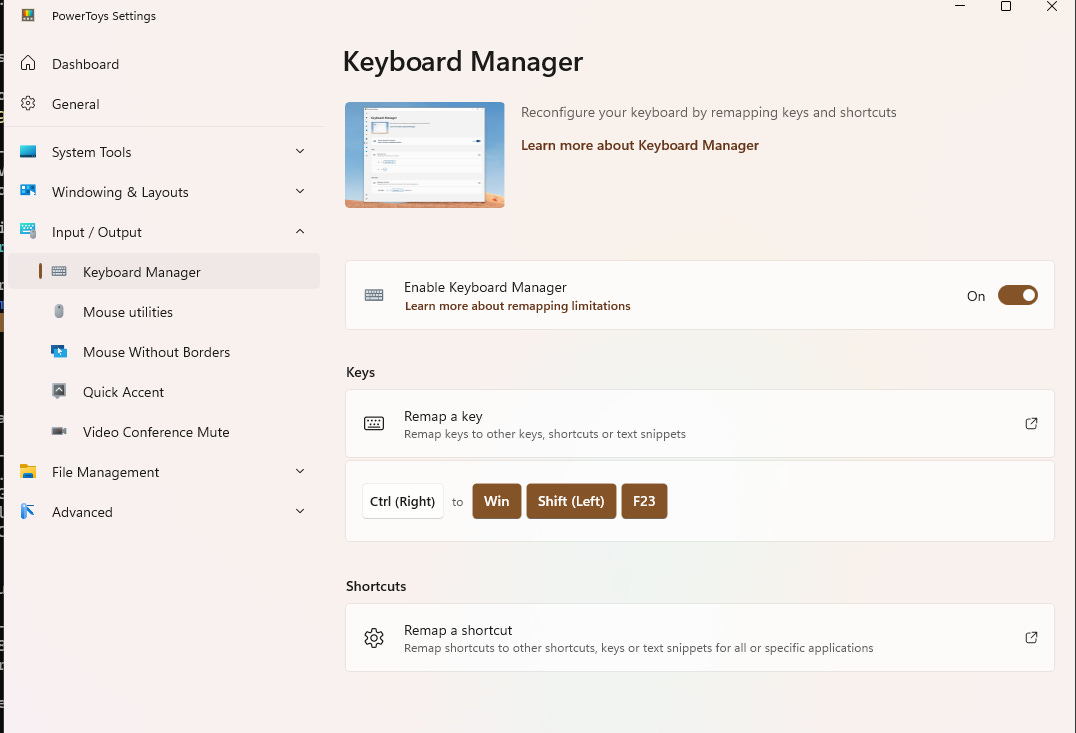
Open Powertoys.
Go to Input / Output and Keyboard Manager
Enable Keyboard Manager
Keys
Remap a key
Enter Ctrl(Right) to "Win + Shift (left) + F23”
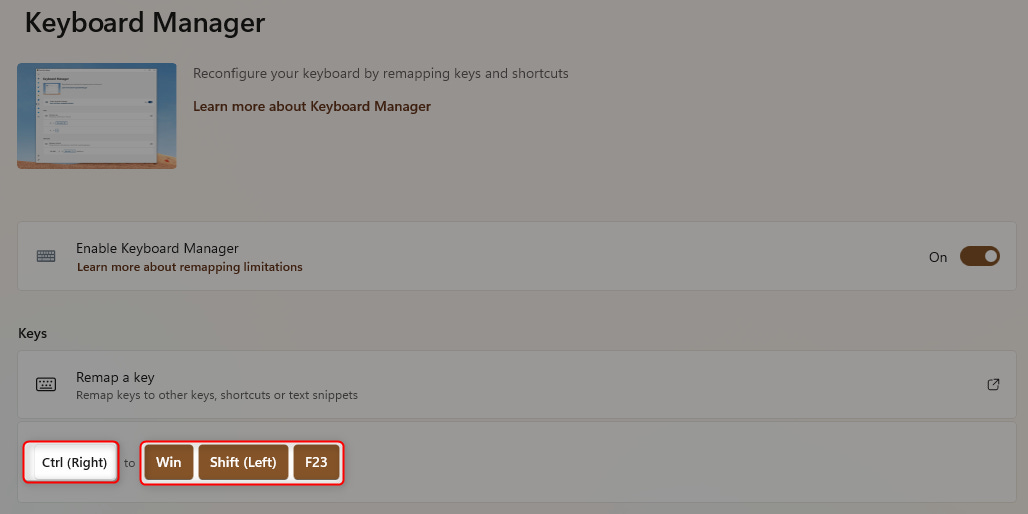
Please be aware, though, that Microsoft, through their infinite wisdom (at the time of writing), has made this key’s sole ability to open the Windows Co-Pilot app and not the functionality within the applications!
Microsoft Edge
In Microsoft Edge, to use Co-Pilot, you can click on the button OR hit the Key Combo:
(Left CTRL)+(Left ALT)+.Yes. That last item was a period.
Microsoft Outlook
Currently, the Microsoft Keys Combos have no mention of Co-Pilot.
Microsoft OneNote
In Microsoft OneNote, at the time of writing, there is no key combo to open Co-Pilot.