

How To: Install Active Directory Users & Computers on Windows 11

I hate saying “it” but I think I need to say it today… “Back in my day…” I just used to search Google for “Remote Server Administration Tools (RSAT)” and install it to control AD.
Microsoft, in its infinite wisdom, decided to change this procedure and include it in Windows 11. I am still not sure I like the change; however, this is how you now install it:
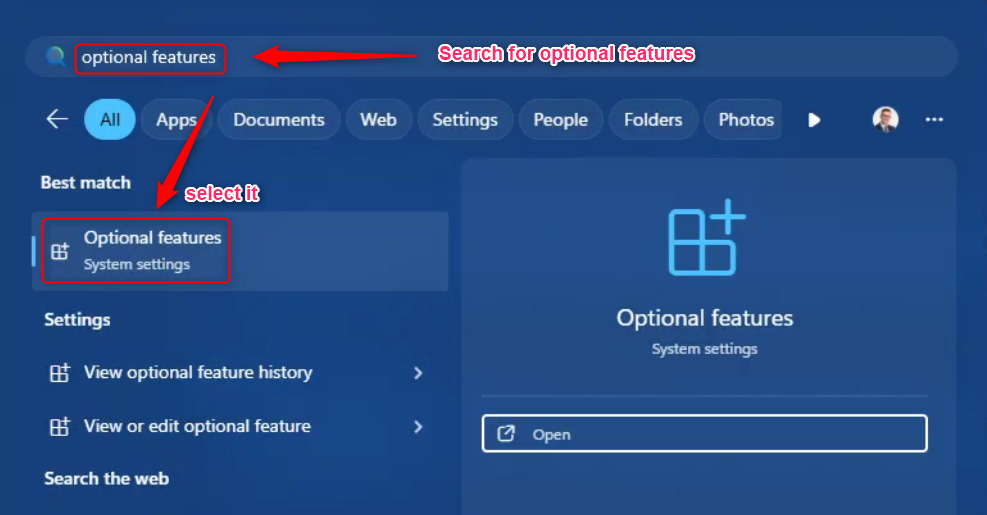
Search “optional features”
On your START - Search area and type “optional features” and then click “Optional features”
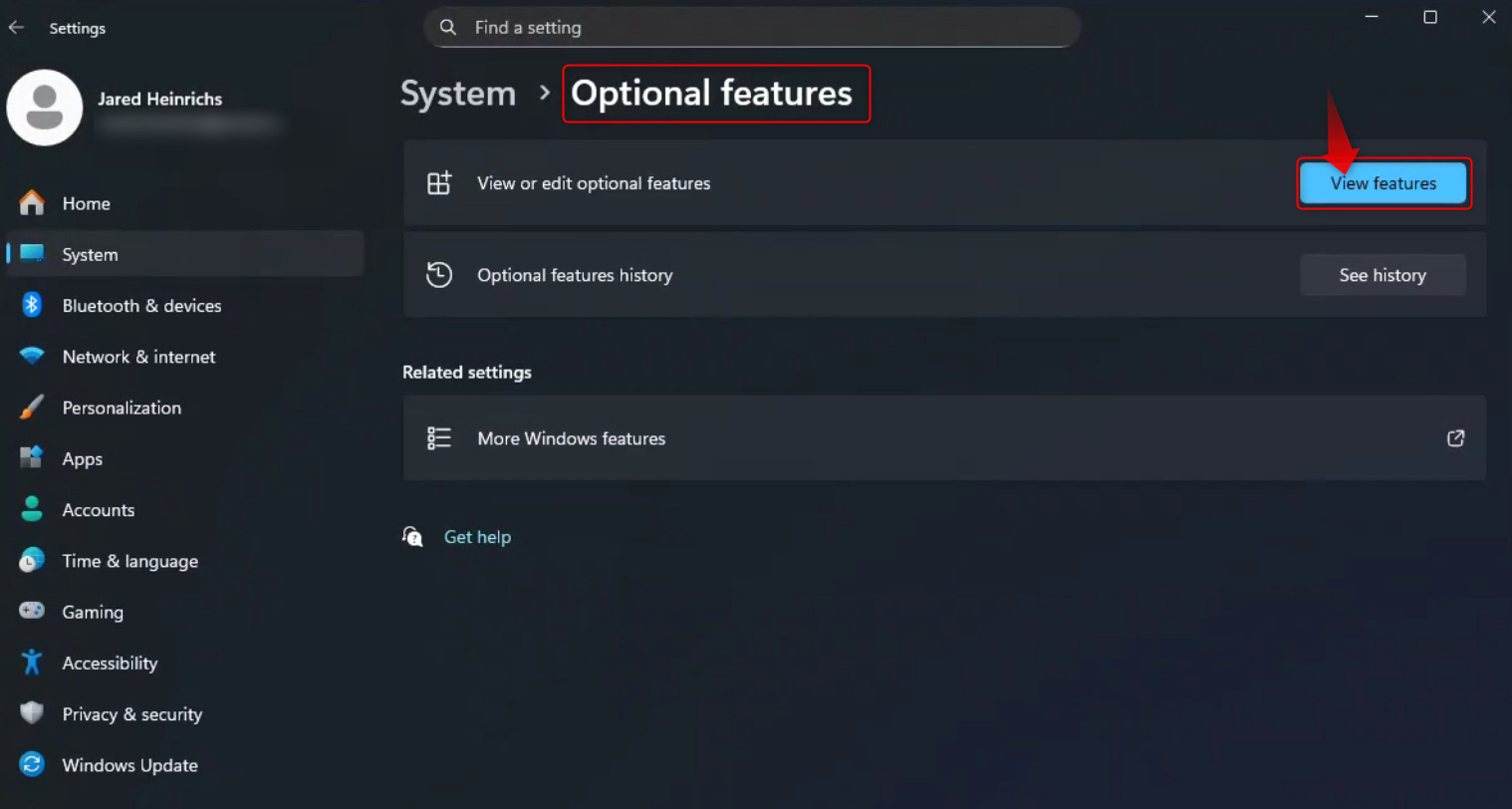
Once that is done, click “View Features”.
Now this is part I really don’t like.
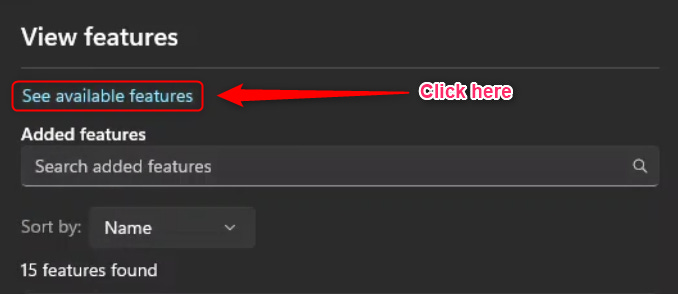
The window that opens only shows the features “currently” installed. To see the features you can install, you must click “See available features,” which doesn’t visually indicate that it's clickable… At least to me. What do you think? I think Microsoft should turn it into a button.
Once that is done, you will then need to search for RSAT, select it and install it.
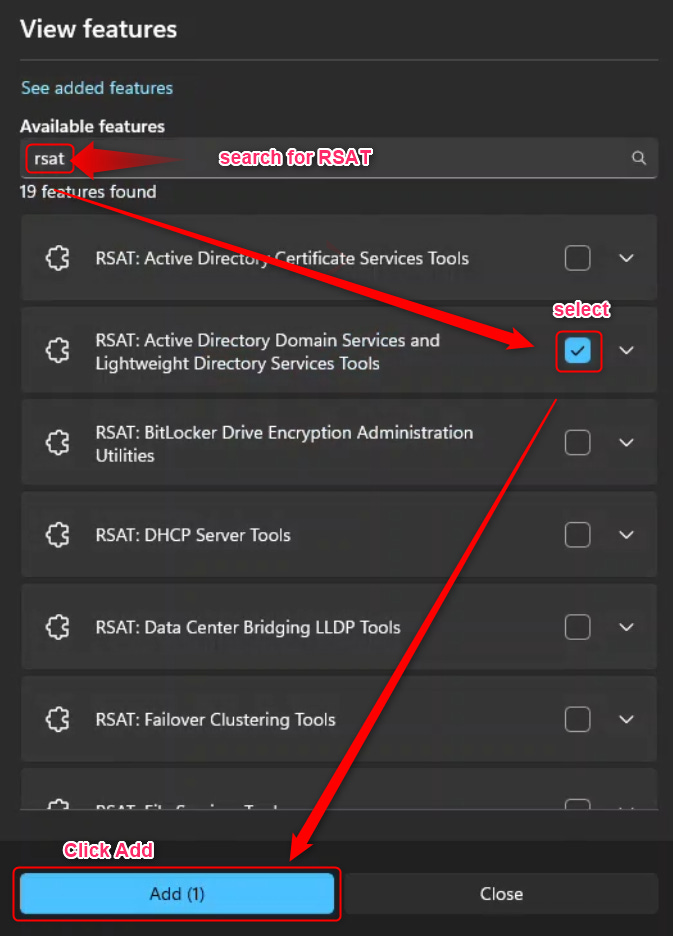
You will see:
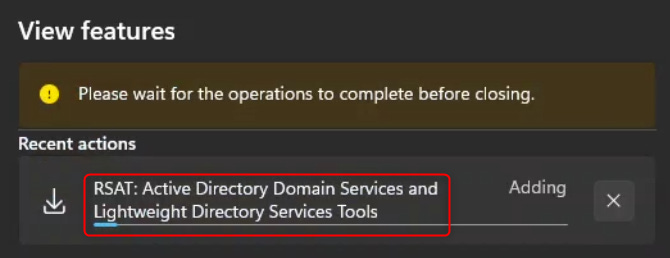
After this completes, you will again have Active Directory Users and Computers. You can do the same for all the other RSAT apps as well.