

How To - Securely Sync Data Between Two Linux Servers

As many of my friends are aware, I am currently working on a project for the perfect home media server, which is relatively easy to set up due to the extensive automation I have implemented. One of the last project tasks was to provide an option that would eliminate the guesswork involved in migrating data from an existing server to a new server.
When considering my options on Linux, I have now settled on using a few technologies that not only ensure the copy is secure but also perform the task as quickly as possible. I am hoping to create a shell script at some point to automate most of these tasks.
Requirements
The ability to access the “FROM” server either from its terminal locally or through an SSH session. I will be using SSH in my example; however, the steps from the physical console will be identical.
The ability to access “TO” server from an SSH connection. Depending on the environment, there can be multiple firewalls between the two devices. The SSH port (22) must be fully open between the two of them. Normally, in a home network, you don’t have to worry about this.
rsync must be installed on the “FROM” machine. If you are using Ubuntu, this command is already installed.
The “base” folder structure and permissions must already be set up before you start the sync.
Overview
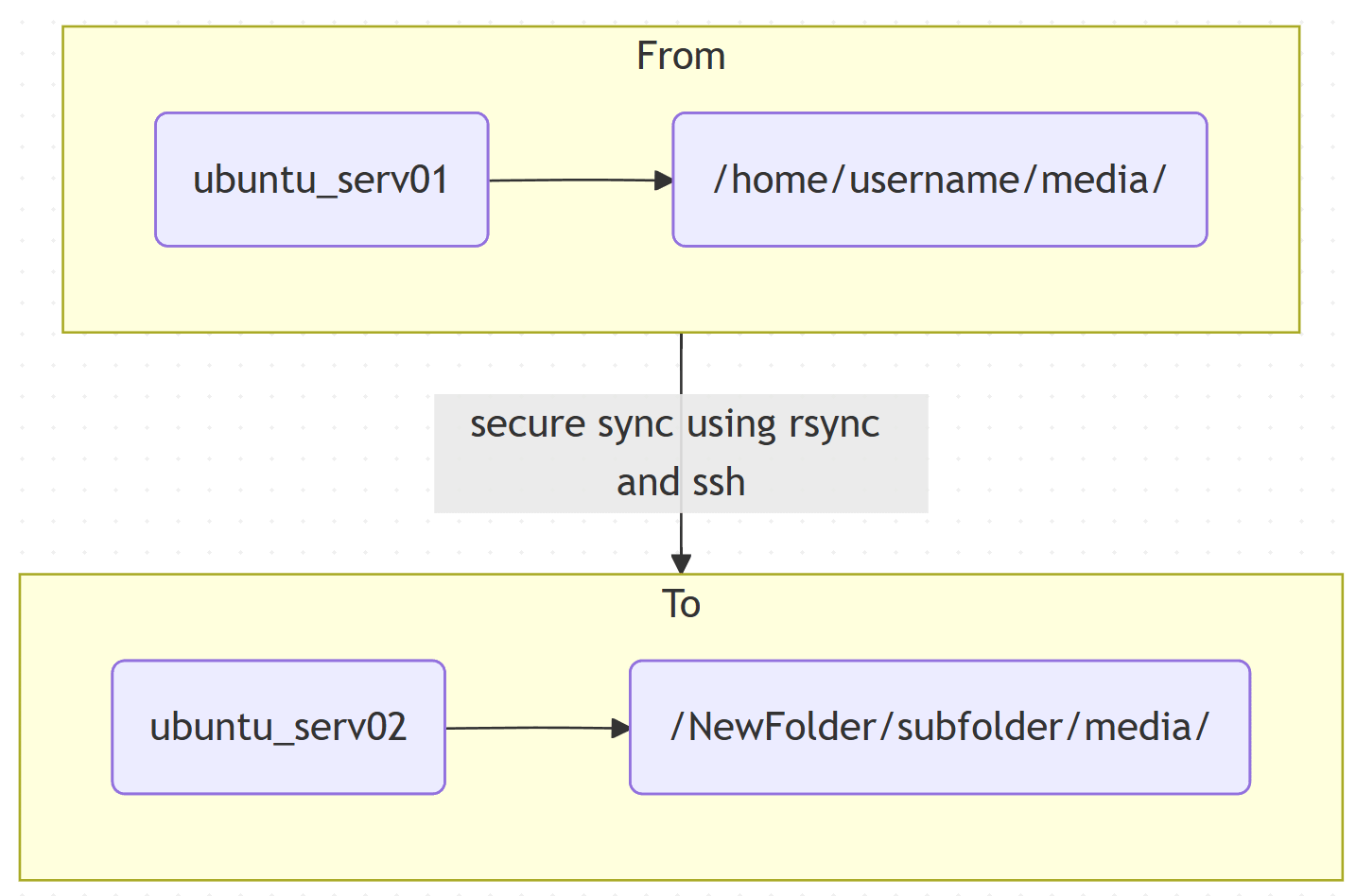
As you can see, there are two servers with similar names. They also are not using the same folder naming strategy. Although the folder locations on each machine may be the same, I wanted to demonstrate that using different locations is entirely feasible.
How To Perform the Sync Between The Two Linux Servers
One of the benefits of rsync is that it can work over SSH and compress the data, allowing the copy to complete quickly and securely. rsync also has the ability to do a “Dry run”.
These commands will be performed on the “FROM” server.
Ensure that you have created your public key. If it asks you to overwrite, it means you already have a file with that name. If it asks you to overwrite the file, just say “n” for no. This will also indicate the location of the file.
ssh-keygenExample output
Generating public/private rsa key pair.
Enter file in which to save the key (/root/.ssh/id_rsa):
/root/.ssh/id_rsa already exists.
Overwrite (y/n)? n
Create Keys
The next command
Command:
ssh-copy-id username@ubunut_serv02will take your public key found in and connect to the remote host using the password it will ask you for, and save it here:
/root/.ssh/id_rsa.pubThe command appends your public key to the remote user’s authorized key file found here:
~/.ssh/authorized_keysIt then sets the correct permission so SSH will accept the key.
Output:
/usr/bin/ssh-copy-id: INFO: Source of key(s) to be installed: “/root/.ssh/id_rsa.pub”
The authenticity of host ‘ubuntu_serv02 (**IP Address **)’ can’t be established.
ECDSA key fingerprint is SHA256:mh0bO********************************QohDE.
Are you sure you want to continue connecting (yes/no/[fingerprint])? yes
/usr/bin/ssh-copy-id: INFO: attempting to log in with the new key(s), to filter out any that are already installed
/usr/bin/ssh-copy-id: INFO: 1 key(s) remain to be installed -- if you are prompted now it is to install the new keys
username@ubuntu_serv02's password:

Number of key(s) added: 1

Now try logging into the machine, with:   “ssh ‘username@ubuntu_serv02’”
and check to make sure that only the key(s) you wanted were added.
We can now sync the Data
The last few commands might seem daunting at first, but they really aren’t when you run them.
It is a good idea to do a “dry run”
To perform a dry run sync of the data, we can now run this command on the “FROM” server. The dry run will do nothing, but it will write a report to the screen detailing what the command will do and which files it will sync.
NOTE - When running these commands, it will NOT ask you for a password thanks to the previous command.
rsync -avz --delete --dry-run -e ssh /home/username/media/ username@ubuntu_serv02:/NewFolder/subfolder/media/If everything comes back “ok” you can then re-run the command without the “—dry-run” flag.
rsync -avz --delete -e ssh /home/username/media/ username@ubuntu_serv02:/NewFolder/subfolder/media/Your machine will now sync the two folders, both securely and quickly, using rsync over SSH.