

How To - Setup copyparty Using Docker Compose
The File Server that does it all. Crazy fast uploads, WebDav, FTP, TFTP, Indexing, zeroconf and more!

Copyparty is a relatively new application written in Python. You may not have heard about it before, so I think you might find it interesting to listen to a bit about it.
Where Can I Get copyparty?
Copyparty is found on GitHub.
What Is copyparty?
Copyparty is a self-hosted file server designed to run anywhere—from a Raspberry Pi to a full-blown server. It’s written in Python and offers a web-based interface for uploading, downloading, and managing files. But don’t let its simplicity fool you—under the hood, it’s packed with features that rival commercial solutions.
Privacy First, Always
Unlike mainstream cloud services, copyparty doesn’t siphon your data or lock you into proprietary ecosystems. You control where your files reside, who has access to them, and how they’re shared. It’s ideal for developers, tinkerers, and anyone who values digital autonomy.
Features That Matter
Drag-and-drop uploads via browser,
Multi-user support with granular permissions,
Built-in media streaming for audio/video files,
Command-line tools for power users,
Runs on almost anything—even ancient hardware,
No database required, making setup a breeze
Prerequisites / Assumptions
There are a few things I will assume about the layout of your server. You will likely need to modify these items to suit your specific configuration.
Set up this folder structure
/home/YOUR_USERNAME/docker/copyparty/conf/
/home/YOUR_USERNAME/media/
Docker Compose File
Code
services:
  copyparty:
    image: copyparty/ac:latest
    container_name: copyparty
    ports:
      - 3923:3923
    volumes:
      - /home/YOUR_USERNAME/docker/copyparty/conf:/cfg/config.conf:ro
      - /home/YOUR_USERNAME/docker/copyparty/db:/cfg/hists #database files
      - /home/YOUR_USERNAME/media:/media #files being exposed to copyparty
    restart: unless-stopped
Location On Server
/home/YOUR_USERNAME/git/homeservarr/copyparty/docker-compose.yamlcopyparty Config File
Code
[global]
    p: 8086, 3923   # Listen on ports 8086 and 3923
    e2dsa           # Enable EdDSA encryption for secure connections
    e2ts            # Enable TLS encryption
    z, qr           # Enable Zeroconf (LAN service discovery) and QR code login
    shr: /shr            # Shared folder path
    hist: /cfg/hists/    # History/log directory

[accounts]
  # Create a user named copypartyadmin with password. Please change both!!!
  copypartyadmin: mypassword

[/]
  /media                        # Expose /media as the root volume
  accs:
    rwda: copypartyadmin        # Give user ‘copypartyadmin’ read/write/delete/admin permissions on this volume. This should match the account name on line 10.
Location
/home/YOUR_USERNAME/docker/copyparty/conf/copyparty.confInstall Instructions
I will assume you have placed the copy part.conf and docker-compose files.yaml files in the correct folders, and that the file paths reflect your server folder structure.
Run the Docker Compose file
These next commands will move you into the location where the copyparty Docker Compose file is located. Then, you will spin up the Docker container and run it in detached mode, allowing it to run continuously as a service rather than in the console.
cd /home/YOUR_USERNAME/git/homeservarr/copyparty/
docker compose up -d
Gotchas
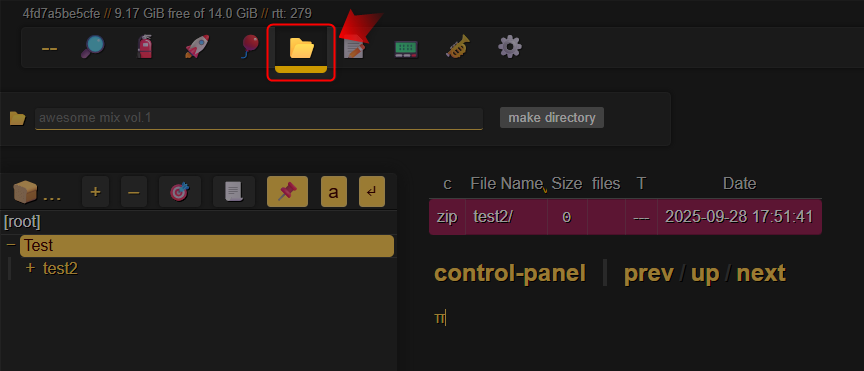
The file manager in copyparty is a bit hard to find and use. Once you know where it is, you will be fine.
In copyparty, there is an actual button to create new folders, but finding a way to delete them isn’t very intuitive. The icon I highlighted shows you how to create a new folder.
Once the folder has been made, how do you delete it? First, click on the file or folder, then click on the information on the right side, anywhere there is no link. When you do this, the area will turn “pink”. When the area turns pink, a menu opens near the bottom right side of the window, displaying all the options available for the file.
It is here where you can now delete the file, share it, copy it, etc.
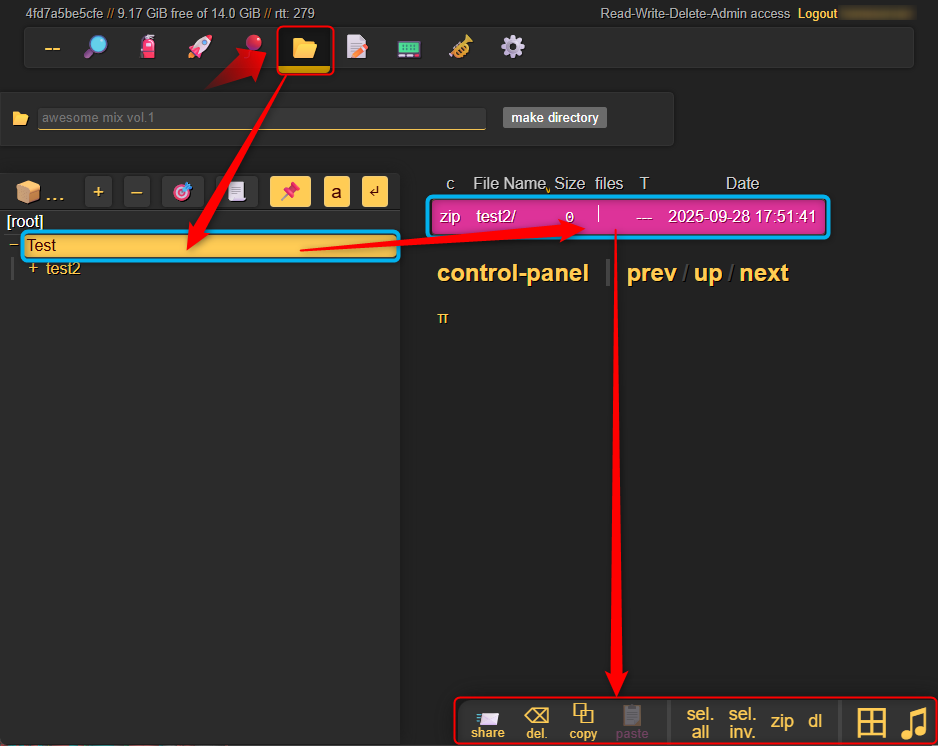
When you hit “del.” (or use the key combo (CONTROL+K) it will prompt you if you really want to remove it.

Extras
The developer has created a demo config file, which you can download from here:
wget https://raw.githubusercontent.com/9001/copyparty/refs/heads/hovudstraum/contrib/systemd/copyparty.conf -O /etc/copyparty.conf