

How to use a PowerShell script to get an access token for calling Azure Graph Api
#PowerShell #Entra #AccessToken #AzureGraph #API

Below is a PowerShell script that will get you the access token that will allow you to authenticate against different Microsoft APIs. In order to use the PowerShell script you will need to setup an Application in Azure which is what allows you to create token. The token does double duty. It is tied to what level of access you require and allows you to authenticate with the resources.
Before you can use the script, you need to log into Microsoft Entra as an “Application Administrator” and follow the instructions in the flowchart.
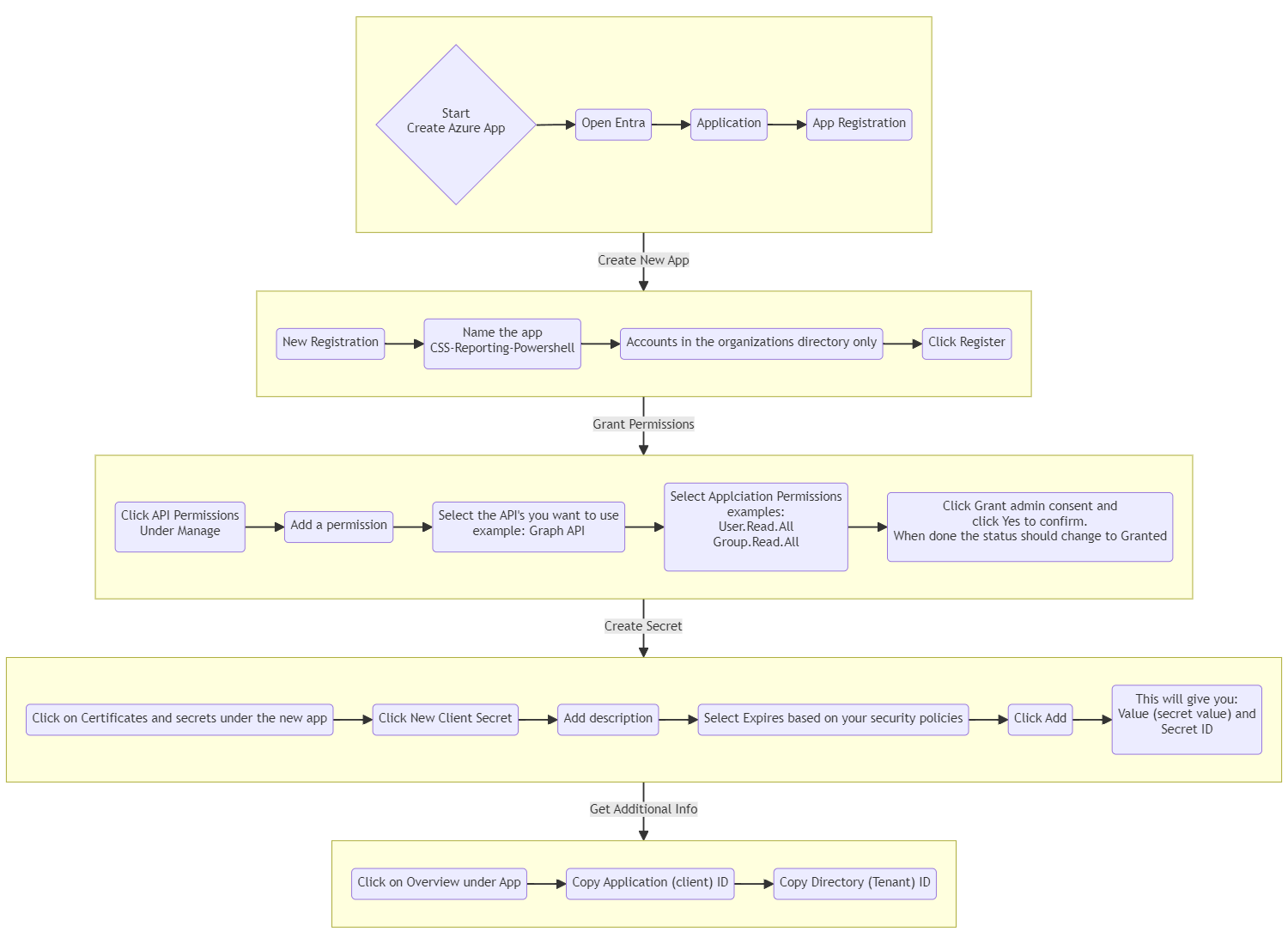
If you want to see how I created the flowchart in Mermaid you can take a look at it here: Link to Mermaid Flow Chart
Once that is all setup, you will need to plug that information into the PowerShell script. Please note when creating a secret it is only displayed once so it is important that you think about token and secret management and make sure it matches your company policy.
Powershell Script
# Define your app registration details
$tenantId = "<your-tenant-id>"
$clientId = "<your-client-id>"
$clientSecret = "<your-client-secret>"
$resourceUri = "https://graph.microsoft.com"  # Replace with your desired resource
$uri = "https://login.microsoftonline.com/$tenantId/oauth2/token"
# Construct the token request
$tokenRequestBody = @{
    grant_type    = "client_credentials"
    client_id     = $clientId
    client_secret = $clientSecret
    resource      = $resourceUri
}

# Send a POST request to the identity platform
$tokenResponse = Invoke-RestMethod -Uri "https://login.microsoftonline.com/$tenantId/oauth2/token" -Method POST -ContentType "application/x-www-form-urlencoded" -Body $tokenRequestBody

# Extract the access token
$accessToken = $tokenResponse.access_token

# Now you can use $accessToken in your API requests
Write-Host "Access token: $accessToken"