

How To: Query and Automate Winget with Microsoft Powershell

You don’t even have to ask me if I love Winget. In October, I created a beginner article on how to use it:
Getting started with winget

In 2020 Microsoft came out with its package manager. It took them a while but the number of applications you can install from it is outstanding. Winget is very similar to the 3rd party package manager Chocolatey.
Winget & Powershell
Microsoft has released a Winget Module; however, at the time of writing this post, you have to install it manually. Why don’t they include this by default? I have no idea, but Microsoft, if you are listening, please make sure that this works its way via an update!
To install the module from a machine that has internet access, you can run this Powershell command:
NOTE - You will need to open Powershell as admin for this command to run!
Install-Module -Name Microsoft.WinGet.Client -Force -Repository PSGallery | Out-NullOnce you do that, you can start writing the typical Powershell queries to which you have grown accustomed!
EXAMPLE #1
On my machine, I installed some software from Samsung for my Galaxy Earbuds.
get-WinGetPackage | Where-Object name -like *galaxy*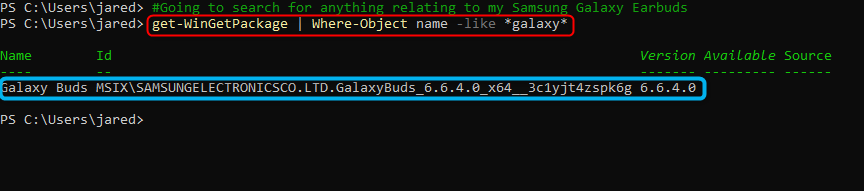
Look at that! It returns the application name, ID and version number.
EXAMPLE #2
Let’s now make a query for any software that has been installed using Winget from the company Microsoft:
Get-WinGetPackage | Where-Object {($_.Source -Match "winget" -and $_.Name -Match "Microsoft")}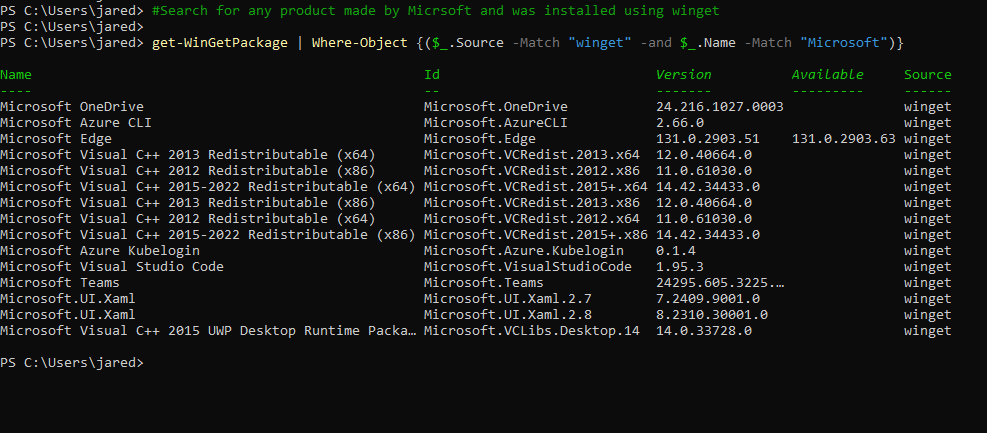
And just like that, you have a full report from the machine of all Microsoft software that was installed using Winget on the system!
EXAMPLE #3 - Automation
Since Powershell always returns objects and has a pipeline, you can really do some amazing automation. Using the last example… What if I now wanted to remove all that software that was included in the previous report? The Winget Module allows me to do this with ease. To do this, I just need to add “Uninstall-WinGetPackage” to the last command using the pipe symbol. The command to remove all Microsoft applications installed using Winget would look like this:
Please note: This will need to be run from an elevated Powershell terminal.
Get-WinGetPackage | Where-Object {($_.Source -Match "winget" -and $_.Name -Match "Microsoft")} | Uninstall-WinGetPackageAnd just like that. All the applications would be uninstalled.