

How To - Setup an Apache Docker Container On A Raspberry Pi


This post will mostly focus on setting up a containerized Apache Web Server; however, like most of my posts, I would like to include a few other little tidbits that I think you should know. If you really just want to set up an Apache Web server, it is a one-liner.
docker run -d --name app0 -e TZ=UTC -p 8080:80 ubuntu/apache2:latestWith that one line, you really don’t need the rest of the post. I recommend reading my previous post on setting up a Docker on a Pi first. This post will follow right after.

First off, I recommend that you type:
docker versionYou should see something like this to make sure you know what version is installed on your docker server:
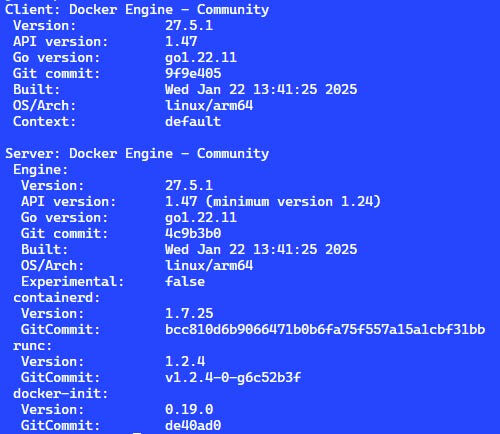
Once you have done that, let’s remove the Hello World app from the previous post. To do this, we will need to type a command to see if there are any running docker images:
docker psYou will see it doesn’t bring back any results because the Hello World app runs once and then stops automatically.
Next, we should remove the Hello World docker image by running:
docker image lsNow, this will show the docker image hello-world. To delete the pulled docker image, we will need to type the command:
NOTE - The Image ID can be obtained from the previous docker image ls command.
docker image rm IMAGE_ID --force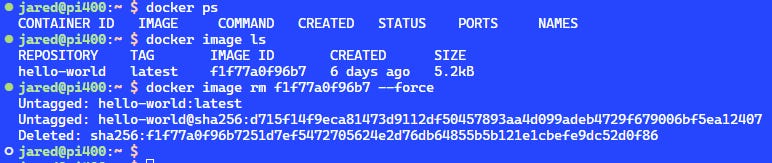
Now that we have a blank slate to work with, let’s install an Apache container. In order to do this, we will type this command:
docker run -d --name app0 -e TZ=UTC -p 8080:80 ubuntu/apache2:latestThis will download and run the latest version of the Apache container. The local container will run on Port 80; however, if you want to talk to the container from the docker server or across the local network, you will need to use Port 8080.
Let’s prove this last comment, as it is a pretty important one. Let’s first test port 80 on the machine running docker. We can do that by running the curl command:
curl localhost:80As expected, it fails. If we type:
curl localhost:8080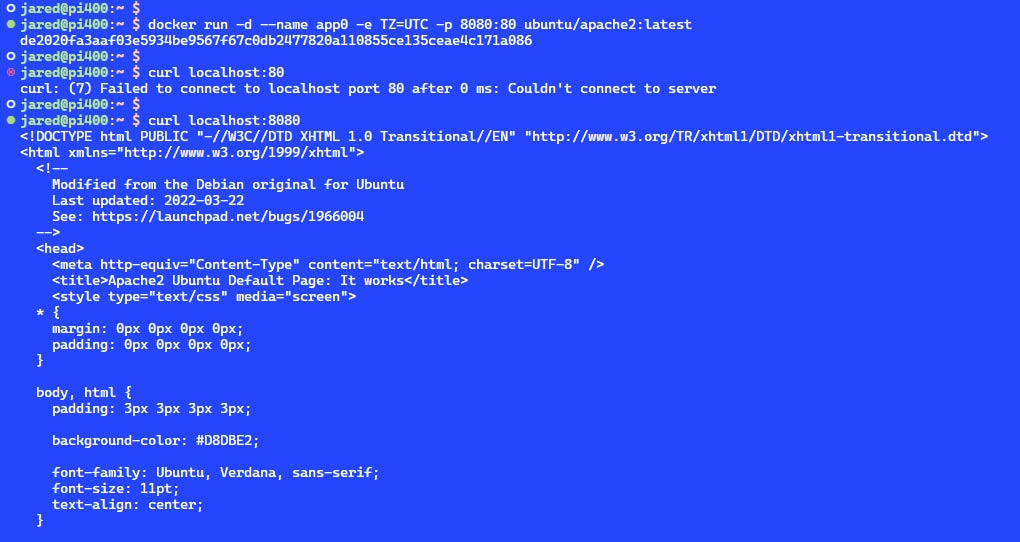
If we go to any other computer on the network that can communicate on port 8080 with the Pi, we can see that the page works if we point to the server and use port 8080.with the Pi ,
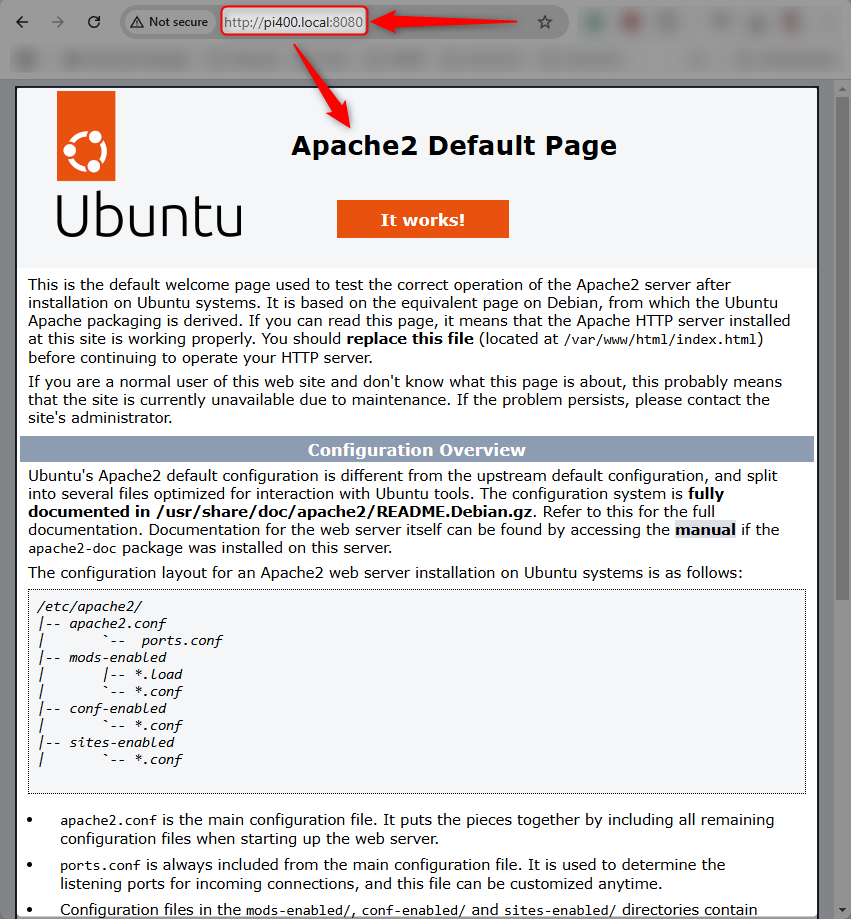
We can also see that the docker image is also running from the command:
docker ps
Now, just like that, you have a working Apache Container, and you have verified everything is working as it should.